Dive into the world of accessible web design: Ready to level up your web game? Let's unravel the mystery behind accessible names, from nailing aria-labe...

Reviewing the accessibility of web solutions, I've noticed that missing accessible name is a common issue. It often appears in buttons and links that do not have visible labels and have icons/images as content. It makes elements not visible to all users and for certain assistive technologies (ATs). Adding an accessible name is an easy and quick fix, but we have to follow some rules to make it valid.
What are naming techniques and how to use them? What is the difference between aria-label and aria-labelledby? What are common developers' mistakes and how to avoid them? I try to cover all of this to help you write more accessible code.
An accessible name makes an element visible and understandable for all users, also for those who use assistive technologies. It improves the semantics and often the structure of the website, user agents use it to create accessibility trees, and it's valuable information for indexer robots, so it impacts SEO. Missing an accessible name can completely block users' interaction.
We have several naming techniques that we can use:
aria-label attributearia-labelledby attributelabel, caption, figcaption...When an accessible name is not implemented using native markup (HTML content) or one of the primary techniques (e.g., the aria-label or aria-labelledby attributes), browsers calculate an accessible name from other attributes as a fallback mechanism. Because the attributes used for this calculation are not intended for naming, a name itself it's usually of low quality and ineffective.
According to WCAG (Web Content Accessibility Guideline), all focusable, interactive elements, dialogs, and some structural containers should have an accessible name. Many other elements can be named, but whether a name will enhance the accessible experience depends on context.
Important! Name for generic role elements, like div and span is not allowed. It's also prohibited in a paragraph.
If you need to add a name to the container, you need to set a specific role for it.
Here you can find a list of ARIA roles with information if a name is required, recommended, or not allowed: Naming role guidance table (opens in a new tab)
Certain elements get their name from the content, for example: buttons, links, and headings. The best way is to use a visible name that is coherent for all users and AT (Assistive Technologies).
<a href="/">Snowdog page</a>
The full list of elements that get a name from their content you can find here: Naming with child content (opens in a new tab)
Native markup elements
The best practice is to use native markup to name HTML elements:
label for form fields: input, textarea, selectlegend for fieldset elementcaption for tablefigcaption for figurearia-label attribute allows adding a name to an element that is not visually rendered. A value of the attribute is a name in the form of a string.
It works in 2 different ways, depending on the role of the element:
1. If you add it on an element that supports naming from children's content, it overrides the content and hides it from ATs, for example:
<button type="button" aria-label="Close" >
  X
</button>
2. If added on any other element (on which is allowed), both, aria-label value and element content are rendered, for example:
<nav aria-label="Customer menu">
  <ul>
    <li>Profile</li>
    <li>Settings</li>
    <li>Logout</li>
  </ul>
</nav>
aria-labelledby attribute, similar to aria-label, allows adding a name for an element but instead of typing a name in an attribute value directly, uses another element and binds it with its id. With this attribute, you can reference hidden elements too, for example:
<span id="switch-label" hidden >
  Dark mode
</span>

<input type="checkbox" role="switch" aria-labelledby="switch-label" >
With aria-labelledby, you can reference multiple elements to use their content as a name. You can also reference the element itself. Content will be concatenated, for example:
<button id="download-button" aria-labelledby="download-button download-info" >
  Download ebook
</button>

<span id="download-info">
  PDF, 2.4 MB
</span>
In the above example, the name will be: "Download ebook PDF, 2.4 MB" (yes, with space before "PDF, 2.4 MB"!)
both aria-label and aria-labelledby used on the element which supports naming from child content (ex. button, links), it overrides the content of an element and hides it from ATs. When you use aria-label or aria-labelledby on a button or link with visible text, the name value should match the visible text or at least start with visible text (it's required by WCAG SC 2.5.3). It is required for using speech-recognition technology - speech input users rely on visual labels when using voice commands. If you reference an element in the aria-labelledby attribute's value more than once during a name calculation, the second and any subsequent references will be ignored. The aria-labelledby attribute cannot be chained, you should reference an element with content, not with another aria-labelledby attribute.
Instead of using additional attributes, you can add visually hidden text which is rendered for ATs. This popular technique is easy to implement and works easily with Tailwind class sr-only (opens in a new tab). Using it you can add an accessible name but only in elements that support naming from child content (ex. button or link) or an additional description.
If you don't use Tailwind, you can use the following CSS code:
.sr-only:not(:focus):not(:active) {
  clip: rect(0 0 0 0);
  clip-path: inset(50%);
  height: 1px;
  overflow: hidden;
  position: absolute;
  white-space: nowrap;
  width: 1px;
}
Example as an accessible name:
<a href="/">
  <svg aria-hidden="true">
  <!-- svg content is hidden from Accessibility API using aria-hidden="true" attribute -->
  </svg>

  <span class="sr-only">
    Homepage
  </span>
</a>
Example as a description:
<div>
  <h2>Carousel</h2>

  <p class="sr-only">
    Use left and right arrows keys to navigate inside a carousel
  </p>

  <!-- Slider content-->
</div>
aria-label. When possible, use a native HTML solution, not ARIA.aria-label on div, span and paragraph. Check if ARIA name property is allowed on a specific element. You can use automatic tools in the browser, axe devtools, lighthouse, or check accessibility in devtools.aria-describedby for additional description. It works similarly to aria-labelledby. It allows adding a description to an element by binding another element by its id. You can also reference a hidden element.Often on a category page, in the product listing, you have the same actions, with the same label (or icon) or different products.
When AT user reviews a page using buttons or links, he sees multiple "Add to cart" links
You can use aria-label with the product name after the action name or visually hidden text inside the action link/button:
<h2>Product list</h2>
<ul>
  <li>
    <!-- aria-label example -->
    <h3>King penguin</h3>
    <button aria-label="Add to cart King penguin">
      <svg aria-hidden="true">
        <!-- add to cart icon -->
      </svg>
    </button>
  </li>

  <li>
    <!-- visually hidden text example -->
    <h3>Adelie penguin</h3>
    <button>
      <svg aria-hidden="true">
        <!-- add to cart icon -->
      </svg>
      <span class="sr-only">
        Add to cart Adelie penguin
      </span>
    </button>
  </li>

  <li>
    <!-- aria-labelledby example, remember to use unique ids -->
    <h3 id="magellanic-penguin">
      Magellanic penguin
    </h3>
    <button id="magellanic-penguin-add" aria-labelledby="magellanic-penguin-add magellanic-penguin" >
      <svg aria-hidden="true">
        <!-- add to cart icon -->
      </svg>
      <span class="sr-only">
        Add to cart
      </span>
    </button>
  </li>
</ul>
You can also use aria-labelledby but you need to use unique ids which can provide additional complication in code, so I don't recommend this approach.
button or a link: does an alt attribute work as an accessible name?Yes, if you use an image as a content of a link or a button, you can use its alt attribute to set an accessible name, for example:
<a href="/">
  <img src="logo.jpg" alt="Homepage" >
</a>
You can also hide an image inside and use aria-label or hidden text, for example:
<!-- aria-label example -->
<a href="/" aria-label="Homepage" >
  <img src="logo.jpg" alt="" aria-hidden="true" >
</a>
<!-- visually hidden text example -->
<a href="/">
  <img src="logo.jpg" alt="" aria-hidden="true" >
  <span class="sr-only">
    Homepage
  </span>
</a>
I recommend using aria-label or hidden text solution, for the following reasons:
Title attribute Any HTML element can have a title attribute specified. It is presented visually as a tooltip when the user hovers over the element with a pointing device, which is not particularly discoverable and is also not accessible to visual users without a pointing device. It can be used as the element's fallback accessible name but remember that some ATs or devices agent can omit it. It is recommended to use the explicit labelling techniques described above.
aria-describedby?The aria-describedby property works similarly to the aria-labelledby - it allows adding a description to an element by binding another element by its id. It also allows referencing hidden elements.
Screen readers present descriptions last, sometimes after a slight delay. Some screen readers do not announce descriptions by default but instead, inform users of their presence so that users can press a key that will announce the description.
You can easily check your accessibility name during development. You can use tools directly in your browser:
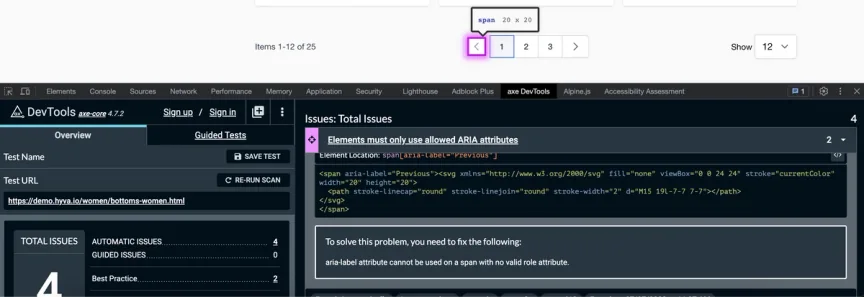
1. Make a quick scan using an automatic test. It allows you to find where the accessible name is missing and if applied aria roles are allowed on the specific element.
Use browser extension: Axe DevTools (opens in a new tab) or IBM Accessibility Checker (opens in a new tab) to detect issues.
Axe DevTools example:
Accessibility checker example:

2. You can review the accessibility tree generated from your code and check the accessibility properties of the element in DevTools:
Check how to use the accessibility pane in DevTools in this guide (opens in a new tab).
More resources:
The eCommerce agency behind 100+ high-stakes projects, ready to build yours.