
Hey there! If you're up for creating some cool robot animations with NAO, you're in the right place! In this blog post, we're going to show you how to m...
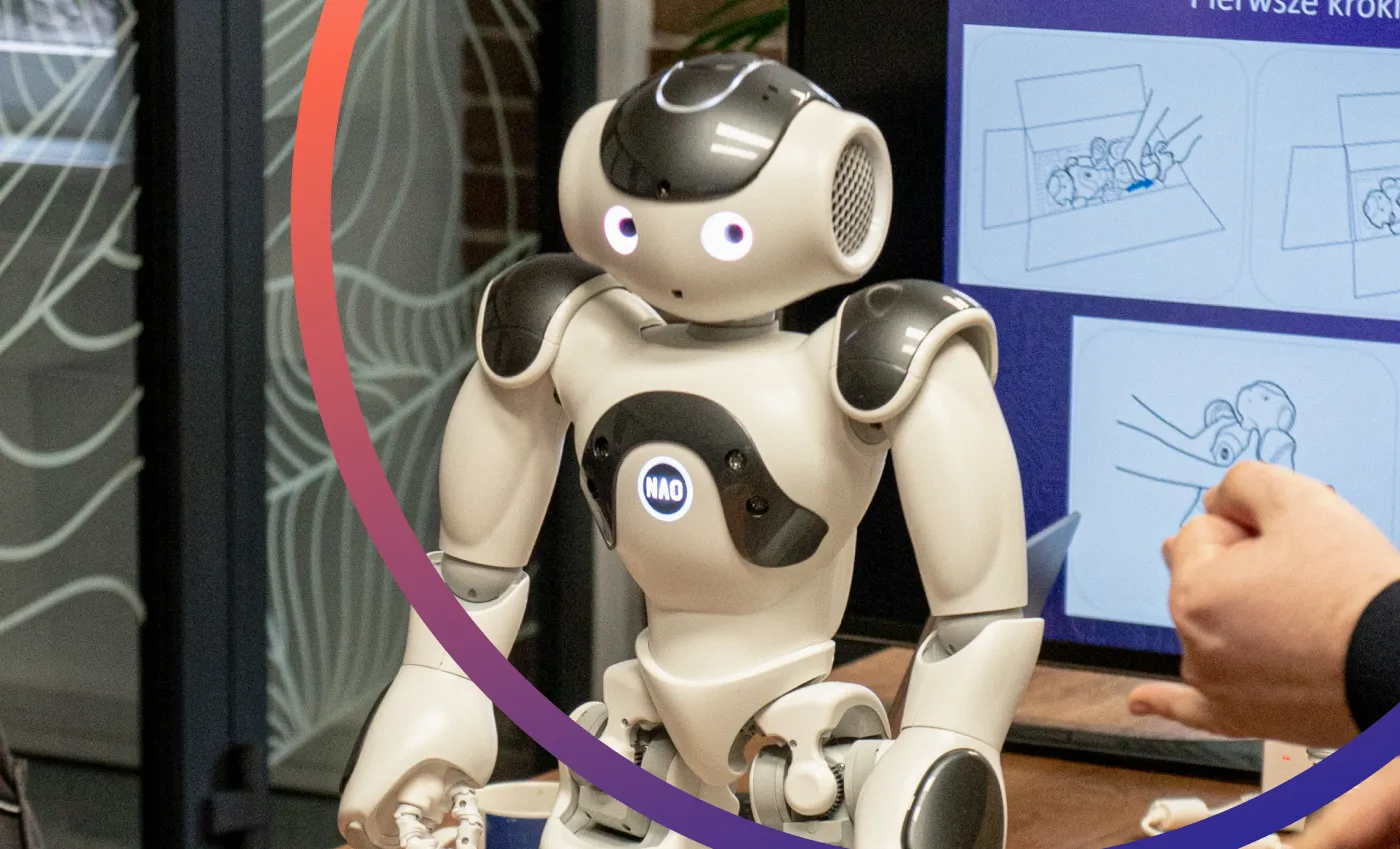
Are you interested in designing a simple animation of robots? If so, you're in the right place! In this blog post, we will show you how to create a fun and interactive game of charades using a built-in box library and the touch sensors of a robot. With just a few simple steps, you can build an engaging game that will entertain both kids and adults alike. So, let's get started and learn how to design a simple animation of a robot for playing charades!
We need to create collections of behaviours that NAO will show us, and we'll try to guess what it is.
File > New project
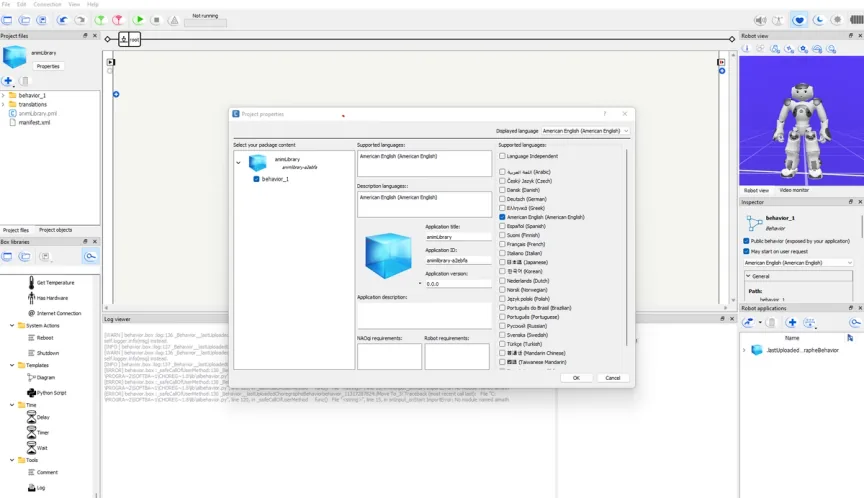
File > Project properties and set Application title.
Our project will have the title animLibrary.
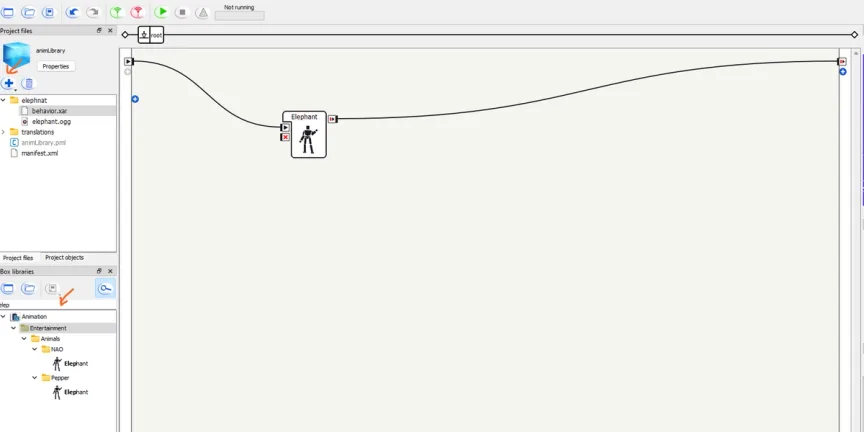
2. Press the '+' button on the left-hand side and choose the option Create behavior.
We will use ready-made animations available in the Box libraries (if you don't see Box libraries you can click View > Box libraries), so our first behaviour has the name elephant, and we use Elephant animations from:
Animations > Entertainment > Animals > NAO
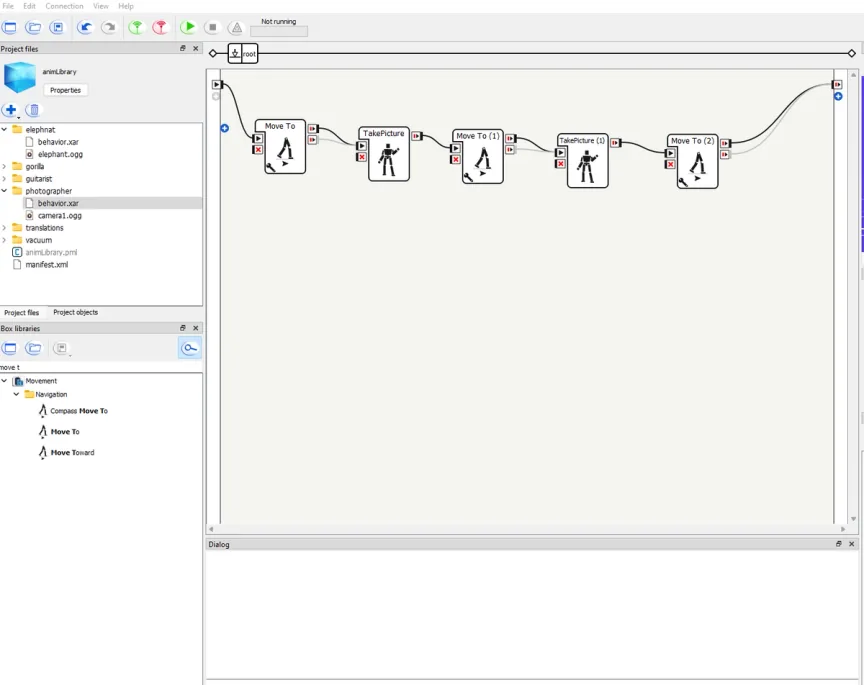
3. You can create as many behaviors as you want. We will show you how to create one more behavior with the name photographer. NAO will pretend to be a photographer, so it will go around and take pictures.
We will use two actions, TakePicture from Animations > Entertainment > Fun > NAO and Move To from Movement > Navigation > Move To. For the action Move To we can set parameters related to the distance and directions of NAO's move.
Also for the action Move To you can connect both outputs (onArrivalAtDestination and onStoppedBeforeArriving) with the input of the next action. In that case, when NAO will not be able to complete the action, due to for instance an obstacle, it will go to the next action and complete animation.
4. As we have all the behaviors, we can upload the animLibrary project to the robot, so it will remember all programmed actions.
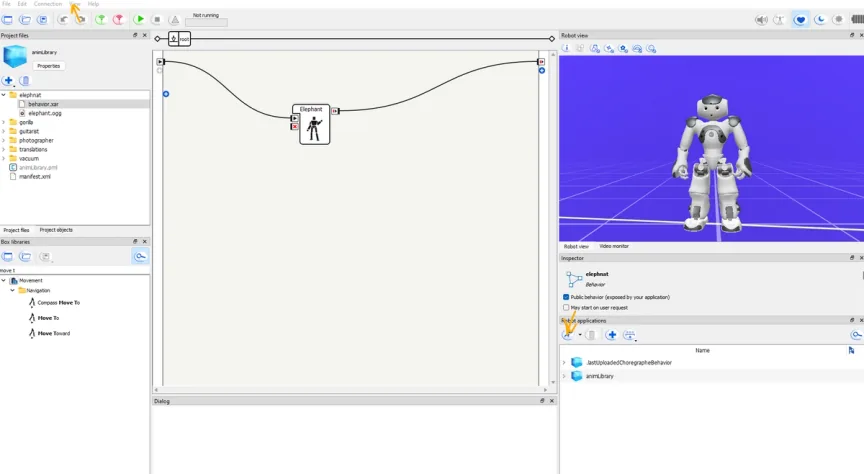
Now when we have a collection of animations that NAO will show us, we can create game logic.
1. Open a new project in the Choregraphe application and save it
File > New project
File > Save project as
2. We need to decide how the robot will start the game. There are 2 options: NAO can wait for our voice command, or we can use one of NAO's sensors to give it a signal that we want to start. In this case, let's use a sensor placed in the center of the robot's head (MiddleTactilTouched). When we touch the sensor, NAO is going to ask us if we want to play charades.
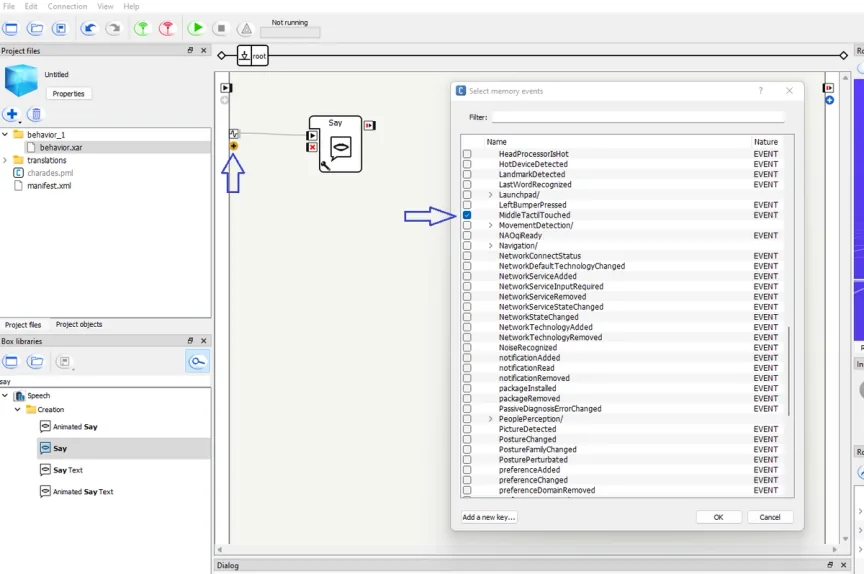
3. Time for a short explanation of how NAO's sensors work.
If the sensor is not touched, the signal for NAO is 0. If we touch it, the signal changes to 1. The robot reacts to the signal change, no matter if it changes from 0 to 1 or from 1 to 0.
If we connect the sensor with the action Say (look at screenshot 5), NAO will say two times Do you want to play with me charades? - when we touch and stop touching the sensor (because the signal has changed in both cases).
We can easily improve it so NAO will only respond to changes from 0 to 1.
To change it, you should do the following things:
def onInput_onStart(self, signal):
  if signal == 1:
    self.play()
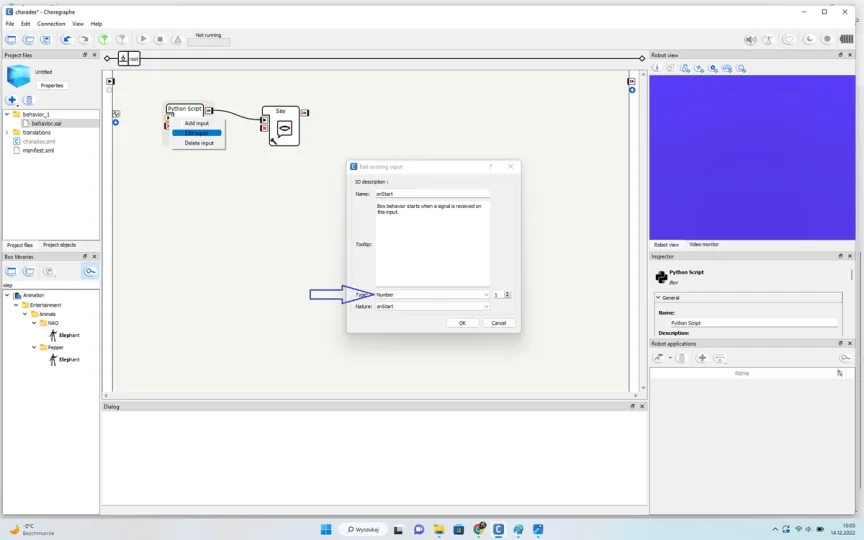
4. After adding Python Script we can prepare the robot to run the game
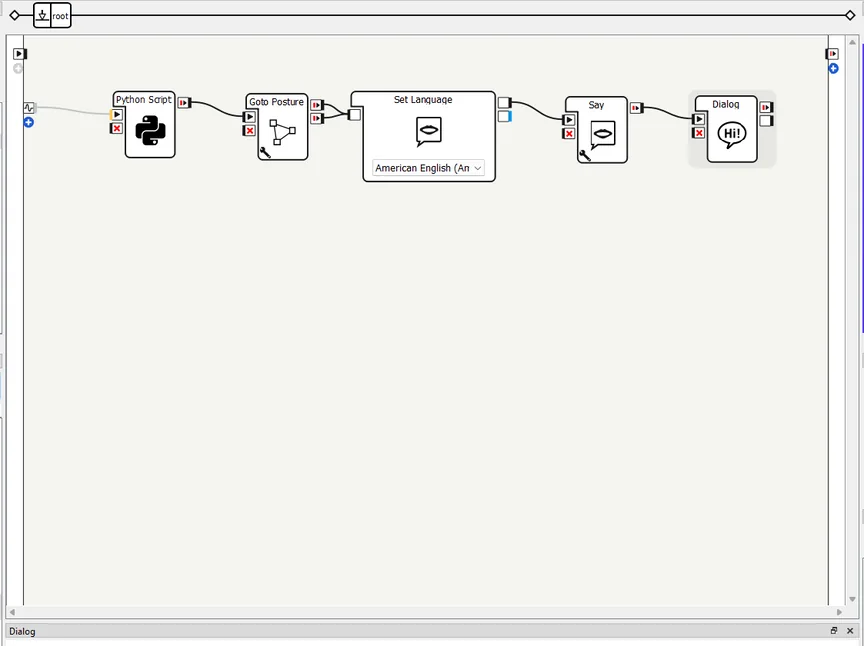
5. Now we can create a dialogue with NAO
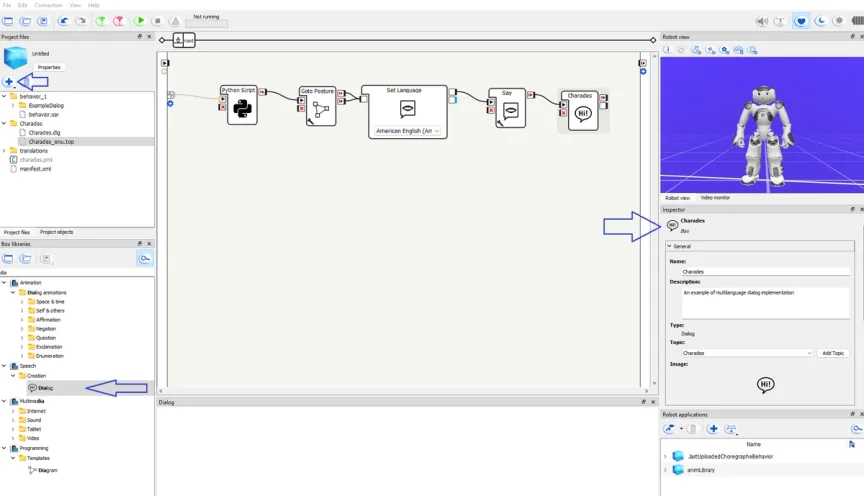
6. We will write a simple chat with the robot.
Open a file related to your topic.
In our case, it is Charades_enu.top.
We will use a proposal rule to trigger a specific robot action. Once one proposal is finished, the next proposal can be started by calling ^nextProposal, or we can repeat the same proposal using ^sameProposal.
If you want to create something more complex or see more examples, we attached (opens in a new tab) documentation of the ALDialog module.
Short description of the code:
7. If you need inspiration, here is our Charades_enu.top file. Feel free to test it and modify according to your needs.
topic: ~Charades()
language: enu

u: ([yes play "let's play"]) ^gotoReactivate(charades)

u: ([no "no thanks" "next time"]) "Okay, see you next time"

proposal: %charades \rspd=85\ what is it? ^run(animlibrary-a2ebfa/mouse)
    u1: (mouse)"well done" ^nextProposal
    u1: (e:Dialog/NotUnderstood) "please try again, look at me ^sameProposal "
    u1: (["I don't know" "no idea" ]) "so let's try next riddle" ^nextProposal

proposal:  \rspd=85\ what is it? ^run(animlibrary-a2ebfa/elephant)
    u1: (elephant) "good job!" ^nextProposal
    u1: (e:Dialog/NotUnderstood) "please try again, look at me ^sameProposal "
    u1: (["I don't know" "no idea" ]) "so let's try next riddle" ^nextProposal

proposal: \rspd=85\ what is it? ^run(animlibrary-a2ebfa/guitar)
    u1: ([guitarist musician]) "great!" ^nextProposal
    u1: (e:Dialog/NotUnderstood) "please try again, look at me ^sameProposal "
    u1: (["I don't know" "no idea" ]) "so let's try next riddle" ^nextProposal

proposal: \rspd=85\ and last but not least riddle ^run(animlibrary-a2ebfa/photographer)
    u1: ([photographer "taking pictures"]) "awesome" ^nextProposal
    u1: (e:Dialog/NotUnderstood) "please try again, look at me ^sameProposal "
    u1: (["I don't know" "no idea" ]) "so let's try next riddle" ^nextProposal

proposal: \rspd=85\ "Well done! You won! Do you want to play again?"
    u1: (yes) ^gotoReactivate(charades)
	   u2: (no) ok, bye-bye
The NAO has just asked us whether we would like to play charades, so our reaction could be yes or no.
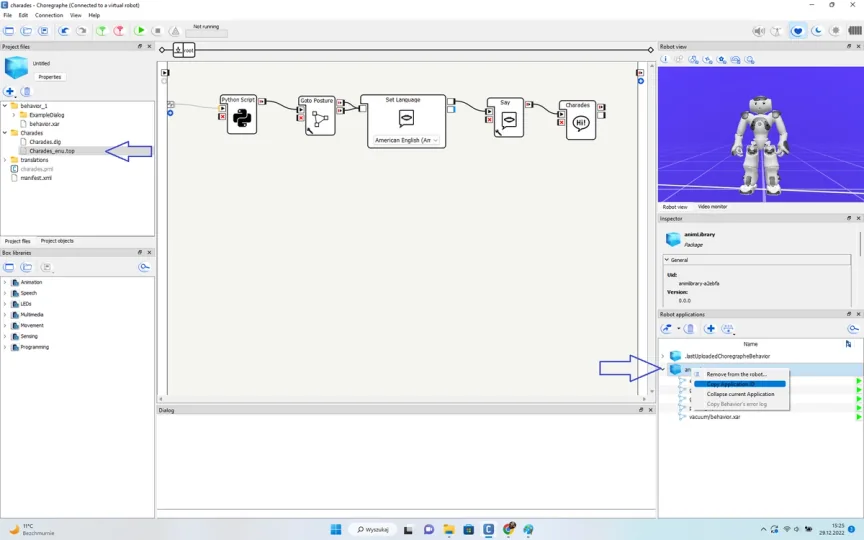
To run animation, you can call the function run() with Application ID and Animation name.
You can copy the Application ID when you right-click on your animation library (look at Screenshot 9). Or you can find Application ID in the project properties: open animLibrary project, click File > Project properties and find Application ID (look at Screenshot 1)
8. If you want the robot to talk slower (or faster) than usual, you can add parameter rspd before the proposal. The value is expressed as a percentage, so if you set rspd=50 the speed will be 50% of NAO's normal speaking speed.
Hope you had fun playing with NAO. Check out my previous article.
The eCommerce agency behind 100+ high-stakes projects, ready to build yours.