Get acquainted with the Magento Admin Panel, whether you're a new developer or a website owner. This article provides insights into the user-friendly in...

Have you just launched your Magento 2 website, or perhaps you are a fresh developer who wants to quickly wrap his head around the whole admin panel concept in Magento? Don't worry, we got you covered. It might seem confusing at first, but once you grasp how the navigation works and get to know where to look for specific features - it will soon be effortless. Magento 2 has a much more user-friendly and less cluttered user interface than its predecessor.
In this article, I will cover all the main navigation points you should get familiar with. If you would like to get more details, I highly advise Magento docs: https://devdocs.magento.com/ (opens in a new tab)
The Magento documentation contains the answers to almost all frequently asked questions. If not, you can always try stackoverflow.com (opens in a new tab)
Magento has two editions: Open Source and Commerce. The Adobe Commerce edition requires a paid license but has more features than Open Source. More on the differences between editions can be found in this comparison: https://magento.com/compare-open-source-and-magento-commerce (opens in a new tab)

To log in to the admin panel, enter your username and password. From Magento 2.4 onwards, 2-Factor Authentication is activated by default and can be configured after your first login.
After login, you are taken to the dashboard where you can review basic information about sales like recent orders, review your revenue, check bestsellers and more. On the left you can find a menu with multiple tabs that direct to specific settings:
Configuration:
Some modules also create shortcuts on the sidebar


There are 7 different product types you can add:
1) Simple product
Single products have a fixed price and color which cannot be adjusted by the customer. It is assigned to one SKU. Simple products can be part of grouped, configurable or bundle products.
2) Configurable product
Configurable products have a set of customizable options or attributes assigned to them. For example, the same shirt available in multiple colours and sizes is a configurable product. When all attributes are customized by the user, the final product will be a simple product and therefore has a unique SKU. This allows for proper inventory management.
3) Grouped product
You can allow customers to order a group of simple products. The Customer can decide which and how many products from the group he would like to buy. When added to the cart, each product is listed individually.
4) Virtual product
These are used to sell non-physical items. The customer is not required to choose a shipping method, and it's mostly used to sell things like warranties, subscriptions etc.
5) Bundle product
User can customize bundle by choosing different simple or virtual products to build their own. All products in the bundle vary in price, SKU, dynamic/fixed value
6) Downloadable product
Anything that can be sent to the customer as a downloadable file can be sold as a downloadable product.
7) Gift card (Magento Commerce only)
You can create gift cards that customers can use at a later time to purchase items in the store etc. (Magento Commerce only)
Once the product is configured and saved, you cannot change its type in this panel. Changing this can only be achieved via SQL or by creating new product from scratch.

The fields with an asterisk are required information. Depending on Magento's settings, out of stock items may or may not be visible on listing pages. Picked attribute set determines preloaded attributes that can be defined for the product.
Other sections here:

Products can be assigned to zero or more categories. The product category tree is usually created first as it often represents the navigation and logic behind the products within the website. The product catalog is divided by root categories (parent) and subcategories (child). Each root category can be assigned to only one store. Subcategories are always nested below a root.
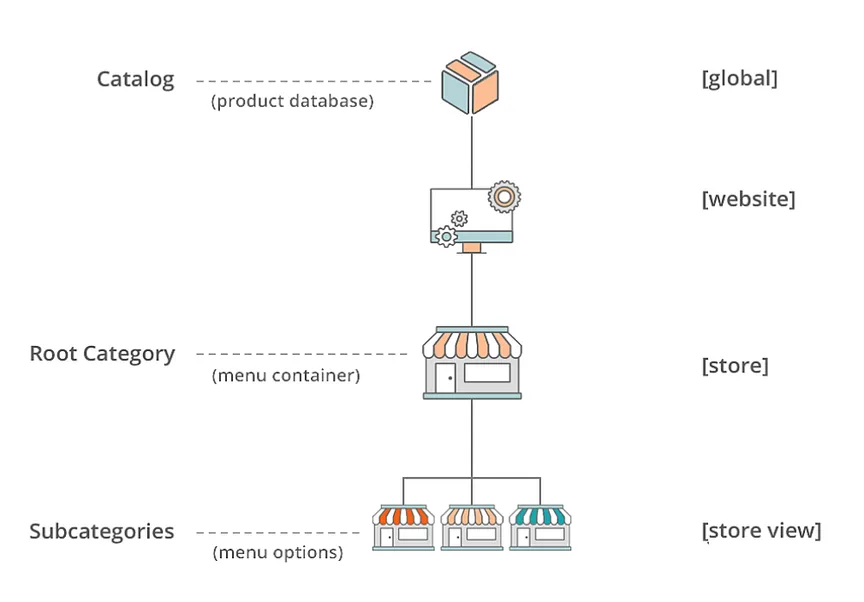
To assign a new root category to your store, go to Stores > Settings > All Stores. Pick the store you would like to assign the new root category to and save.
Design – apply a custom layout to this category page and even its products.

Attributes are building blocks of several data types in Magento. They include:
Each type is assigned to specific data. We will focus on the 3 most important ones:

1) Product attributes – these are used to build your products and describe their features.
Attributes decide the type of input control that is used for the product's options like:
It provides additional information for product pages and can be used in a layered navigation as filters or search criteria (Storefront properties > Search configuration). It is also possible to compare products using a specific attribute, show them in reports, or use them in promotions. You can create as many attributes and attribute sets as necessary to describe the products in your catalog. In addition, system attributes, such as price, are built into the core Commerce platform and cannot be changed.
2) Attribute set - To quickly organize product attributes, we can assign them to attribute sets which then can be used to create product templates. Simply drag attribute to the left to assign them and place in specific order. Groups are visible in product view as dropdown. This helps to keep everything easily readable and manageable.

3) Customer attributes – To cater to every business need, it is possible to create custom customer attributes. You can add custom attributes to the Account Information, Address Book, and Billing Information sections of the customer’s account.
https://docs.magento.com/user-guide/stores/attributes-customer.html (opens in a new tab)


In the "Orders" area, you can view orders, create new orders for customers and perform bulk actions like:
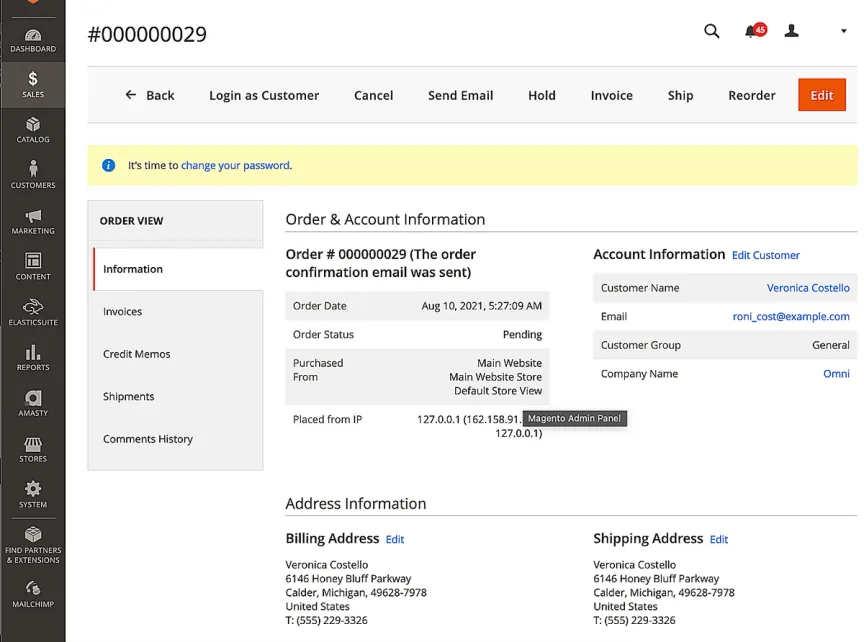
You can manage single orders by changing order status, issue invoices, add shipments, edit addresses, check payment status or submit comments for a customer.
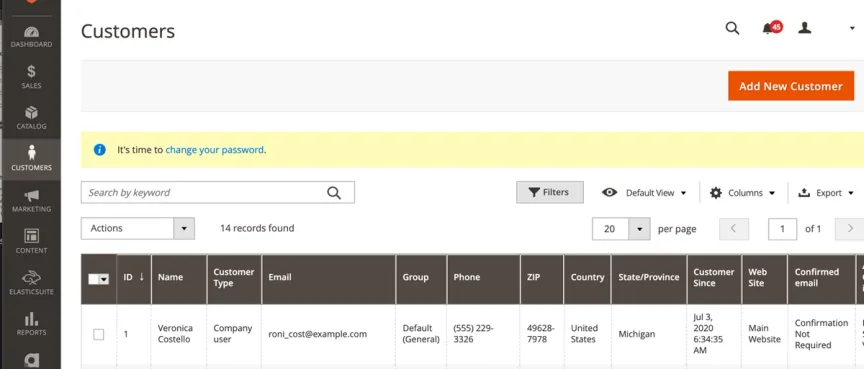
In this area, you can browse customers and perform bulk actions like:
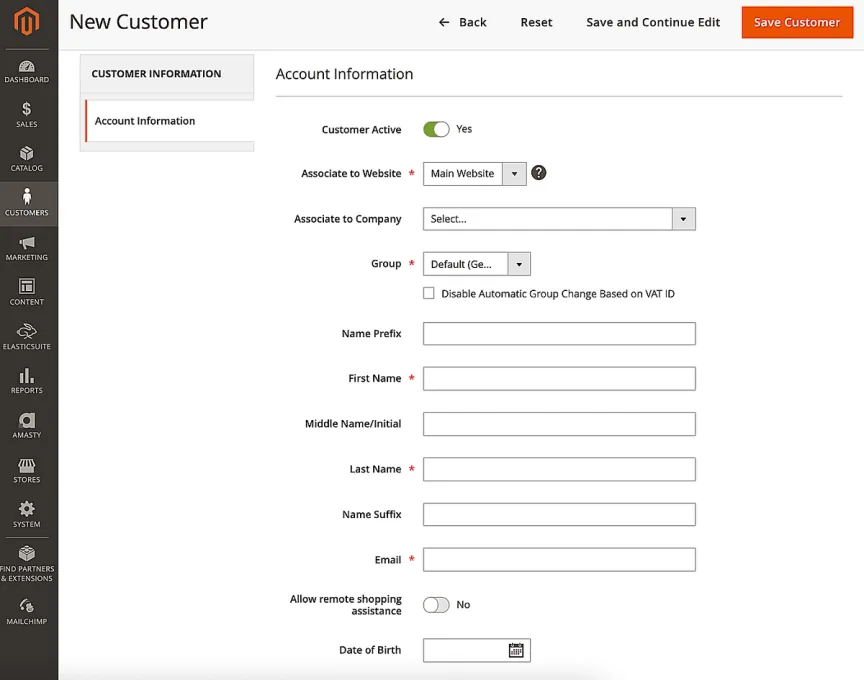
You can also create a new customer; once saved, the user will receive an activation link sent to their email. Upon activation, all features will be enabled.
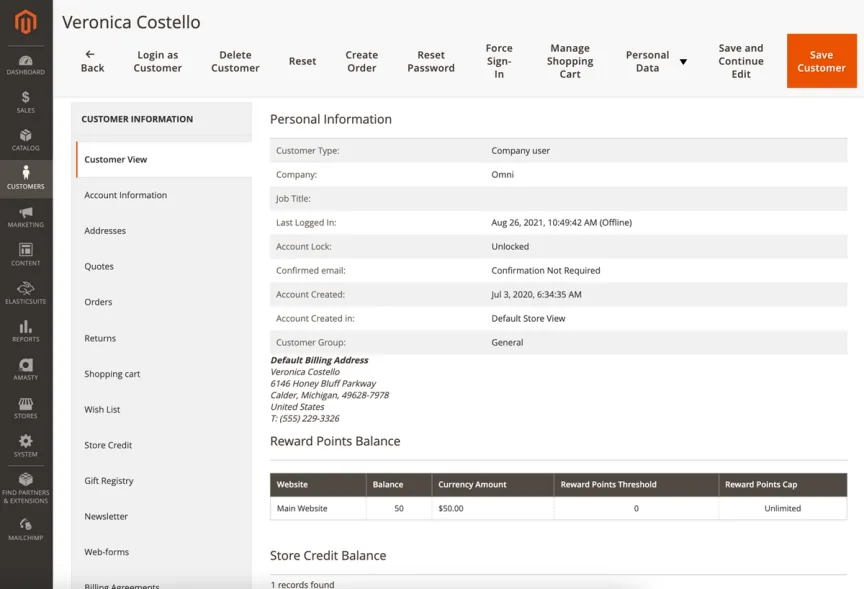
Customer view allows you to see more in-depth details about your customers. There are multiple fields you can verify and manage, including:
https://docs.magento.com/user-guide/marketing/promotions.html (opens in a new tab)
To create a new promotion go to Marketing > Promotions > …. There are two main types of price rules in Magento that you can configure for promotions.
1) Catalogue price rules
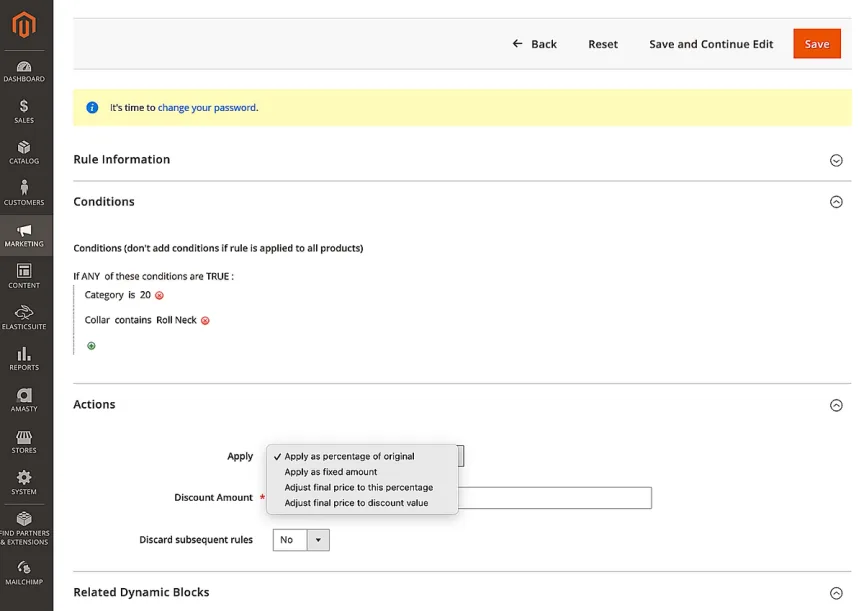
For example:
If *all* of these conditions are *true*
+
*Category* *is* *ID*
This will apply the promotion to all products in the category with a specific I
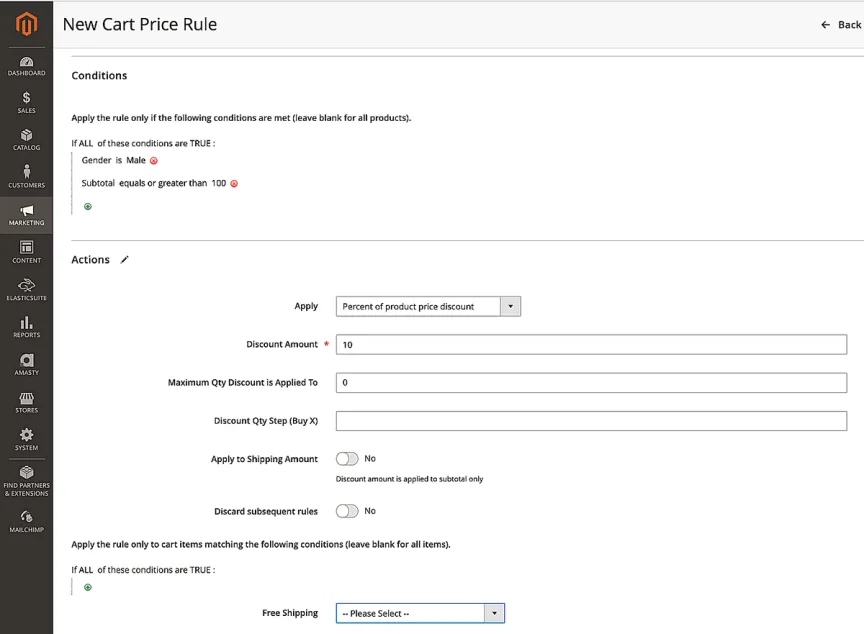
2) Cart price rule – those price rules are applied to the shopping cart when all or any specific conditions based on the cart attributes are met. It is possible to select such attributes as matching SKU, weight, total items quantity, subtotal etc.
This is where very common coupons or rules for free shipping are created.
In conclusion, navigating the Magento 2 admin panel may initially seem overwhelming, but with practice and familiarization, it becomes effortless. Remember to refer to the Magento documentation and Stack Overflow for any further inquiries or clarifications. Happy managing and developing! Read the next article from the series - Magento 2 module structures.
The eCommerce agency behind 100+ high-stakes projects, ready to build yours.